
From Submission to Case File — In Minutes, Not Hours
When a client submits the intake form, LitiGator automatically extracts all data, stores it in your Google Sheets dashboard, generates a PDF case summary, creates an organized Google Drive folder, and notifies your review team — all without anyone lifting a finger.
Zero staff time on data entry. Zero transcription errors. Every case file built the same way, every time.
Why It Matters
- Zero staff time spent on data entry
- No transcription errors between systems
- Consistent case file structure every time
- Faster response time to prospective clients
What Happens After a Submission
Within minutes of a client hitting Submit, the following happens automatically:
- Data extraction — All form fields are parsed and stored in your Google Sheets intake dashboard
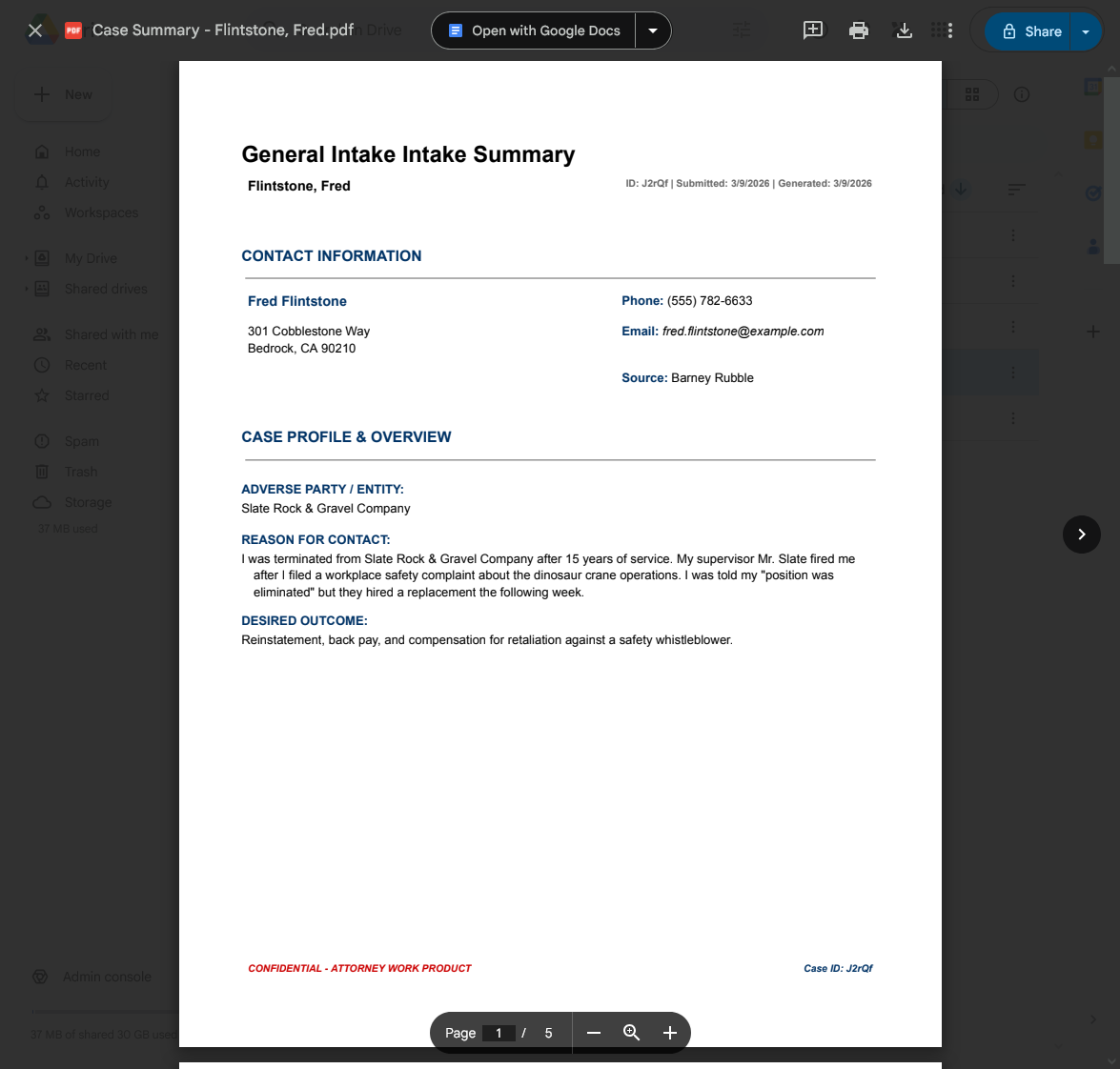
- PDF generation — A formatted case summary document is created with all client details, timeline, and evidence references
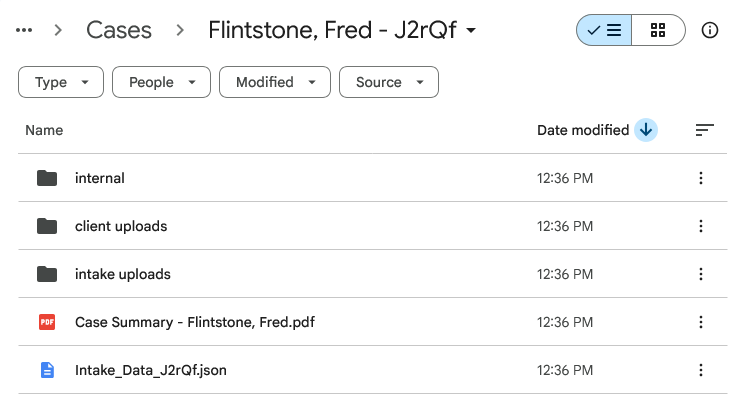
- Folder creation — An organized Google Drive folder is built with subfolders for uploads, client files, and internal notes
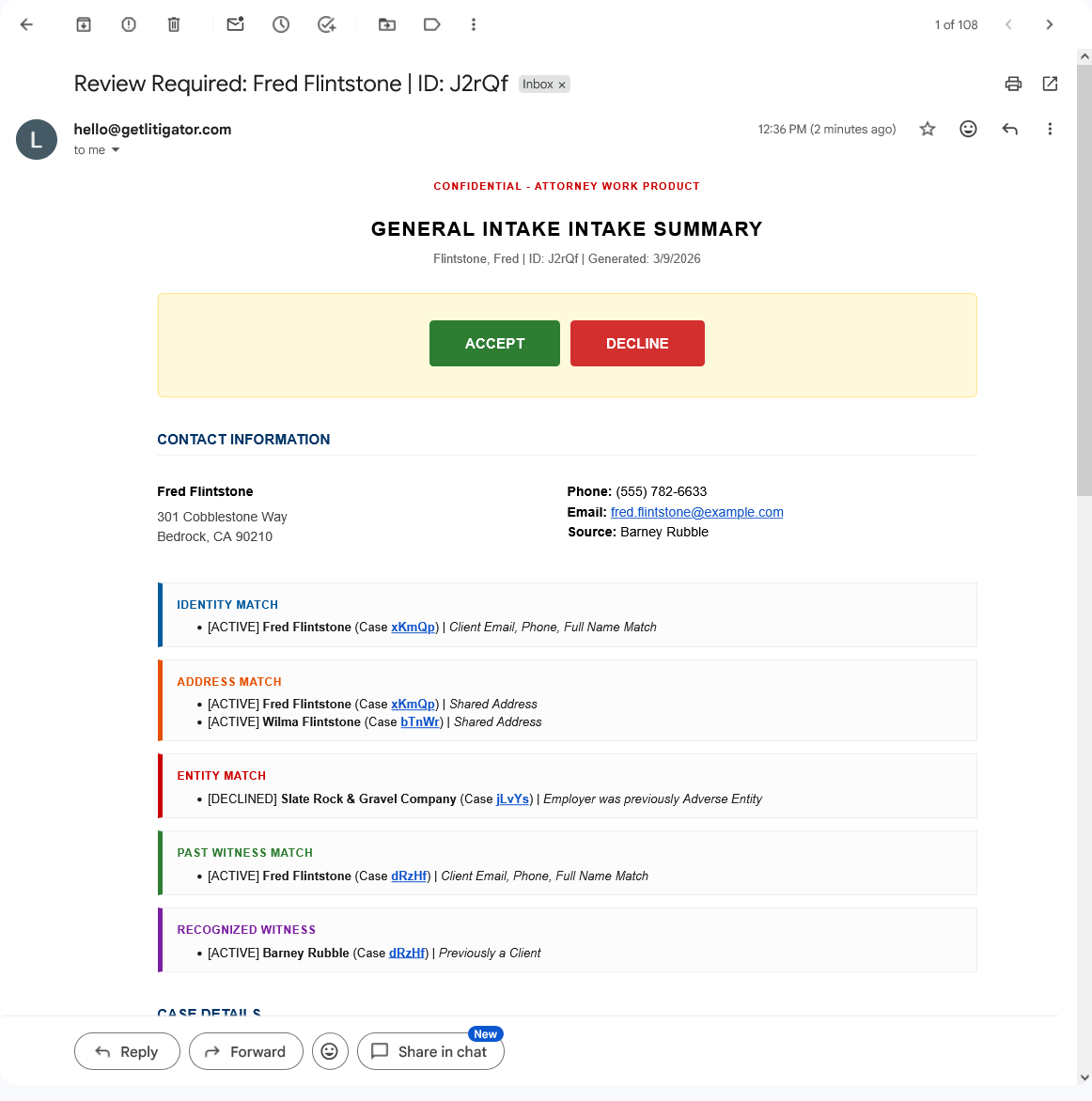
- Conflict screening — The submission is checked against your complete history of clients, parties, and witnesses
- Team notification — Your review team receives a detailed email with everything they need to evaluate the case
The PDF Case Summary
A formatted document is generated automatically and stored in the case folder. Attorneys can review it in Drive or from the link in their notification email.
The Case Folder
An organized Google Drive folder is created with subfolders for evidence, client uploads, and internal work product.
The Notification Email
Your review team receives a detailed email with the full case summary, conflict alerts, and one-click Accept/Decline buttons.
Key Details
- Data stored in Google Sheets — your spreadsheet, your control
- PDF case summary — auto-generated and stored in Google Drive
- Drive folders — created with subfolders for uploads, client files, and internal notes
- Processing time — completes within minutes of submission