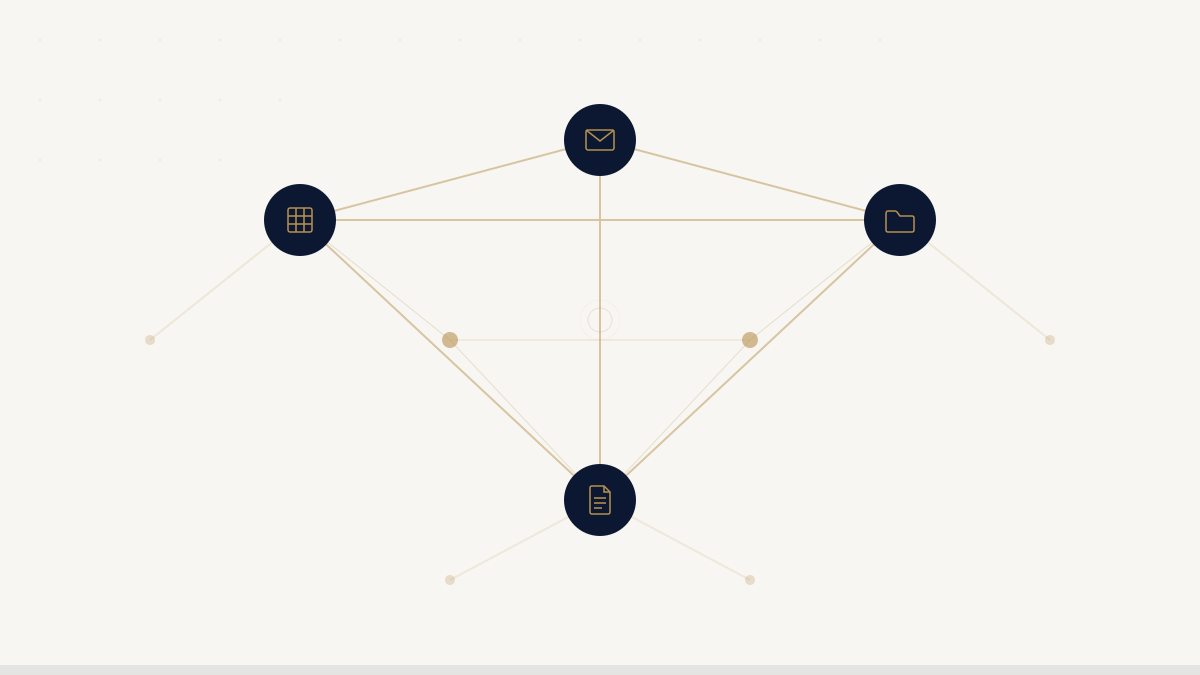
Your Google Workspace Is Already a Legal Platform
Walk through most small law firms and you will find the same software stack: Gmail for client communication, Drive for storing documents, Sheets for tracking anything that needs a row and a column, Calendar for scheduling, and Docs for drafting. The firm pays for all of it through a single Google Workspace subscription.
Then, a few desks over, you will find a second subscription — legal intake software, a case management platform, a CRM — that was purchased to fill a gap the Google tools were supposedly too limited to cover.
The gap is real. But the diagnosis is often wrong. The problem at most firms is not that Google Workspace lacks the right components. It is that no one has connected them.
The Tools You Already Have
A standard Google Workspace Business Starter or Business Standard subscription includes:
Gmail — a battle-tested email system with programmable labels, search, filters, and a well-documented API. For a law firm, this is not just email. It is the primary channel through which attorneys receive case notifications and communicate decisions.
Google Drive — cloud file storage with folder hierarchies, permission controls, sharing management, version history, and drive-level search. Drive folders can be organized by client, by case, by date, by outcome. Sharing can be restricted by domain, by individual, or made entirely private.
Google Sheets — a spreadsheet with over 10 million cells per tab and a native API. Firms already use Sheets to track intake submissions, case statuses, billing, and contacts. The data is there. The structure is ad hoc and manual, but the data is there.
Google Docs — a word processor that supports programmatic document creation. Case summary documents, engagement letters, and client-facing summaries can all be generated and stored here.
Google People API — contact management tied to your domain’s address book. Your firm’s contact list is already a structured database.
None of these are novelties. Your firm is almost certainly paying for all of them right now. The question is whether they are being used as isolated applications or as connected infrastructure.
What “Infrastructure” Actually Means
When a legal tech vendor describes their product as “infrastructure,” they usually mean they are hosting a database and a set of web interfaces for you. Your data lives on their servers, within their schema, accessible through their UI, and subject to their pricing, their uptime, and their business continuity.
When we say Google Workspace is infrastructure, we mean something different and more literal: it is the actual substrate that your firm’s operations run on. The email server, the file storage, the document store, the contact database — these are already operational, already funded, and already integrated with each other at the platform level.
The gap is not components. The gap is orchestration.
A structured intake pipeline requires that when a client submits a form, several things happen in a defined sequence: the data gets recorded, a case folder gets created, the right people get notified, and someone can make a decision and have that decision tracked. Each of those steps involves tools your firm already has — a spreadsheet, a Drive folder, a Gmail notification. What most firms lack is the layer that connects them automatically, without a human being manually copying information from one place to another.
The Security You Already Have (and Probably Underestimate)
There is a misconception in the market that legal-specific software is inherently more secure than general-purpose software. This is often the reverse of the truth.
Google Workspace is one of the most audited software environments on the planet. Google publishes detailed security documentation and holds the following certifications and compliance designations that are relevant to law firms:
- SOC 2 Type II — independent auditor verification that security controls are operational over time, not just designed correctly
- ISO 27001 — international information security management standard
- AES-256 encryption at rest — the same standard used by financial institutions and governments
- TLS encryption in transit — all data moving between your devices and Google’s servers is encrypted
- Data Loss Prevention (DLP) — enterprise-tier Workspace subscriptions include tools for detecting and blocking inappropriate data sharing
- Admin console access controls — your Workspace admin can configure two-factor authentication requirements, session length limits, app permissions, and audit logs for your entire domain
Compare this to a legal SaaS vendor with a 12-person engineering team. Their security posture is almost certainly less mature, less audited, and less documented than Google’s. This is not a criticism of those vendors — maintaining Google-level security infrastructure is not feasible for a startup. It is simply a statement about the security baseline your firm already has access to.
The critical caveat is that Google Workspace security is only as strong as your configuration. AES-256 encryption does not protect a file stored in a publicly shared Drive folder. Two-factor authentication does not matter if it is not enforced at the domain level. The tools are there; using them correctly requires intentional setup.
The Orchestration Layer Concept
The most useful mental model for this is a distinction between components and orchestration.
A law firm has all the components of a functional intake pipeline: a form on its website, an email account, a spreadsheet for tracking, a Drive folder for documents, and attorneys who need to review cases. The components are not the problem.
The problem is that connecting them requires manual work. Someone has to read the form submission email, copy the data into the spreadsheet, create the folder, notify the attorneys, and then watch for a response. Each step takes time. Each step can be skipped when someone is busy, sick, or out of office. Each step is a point of failure.
An orchestration layer automates the connections between components. It does not replace the components. When a form submission arrives, the orchestration layer writes the data to the spreadsheet, creates the Drive folder, sends the Gmail notification, and monitors the inbox for a reply — all automatically, without a human being in the loop until a decision needs to be made.
This is what “running on Google Workspace” means in practice. The data lives in your Sheets. The files live in your Drive. The notifications arrive in your Gmail. The orchestration layer is the only new element, and it runs within your existing Workspace account, under your existing Google security controls.
What This Looks Like in Practice
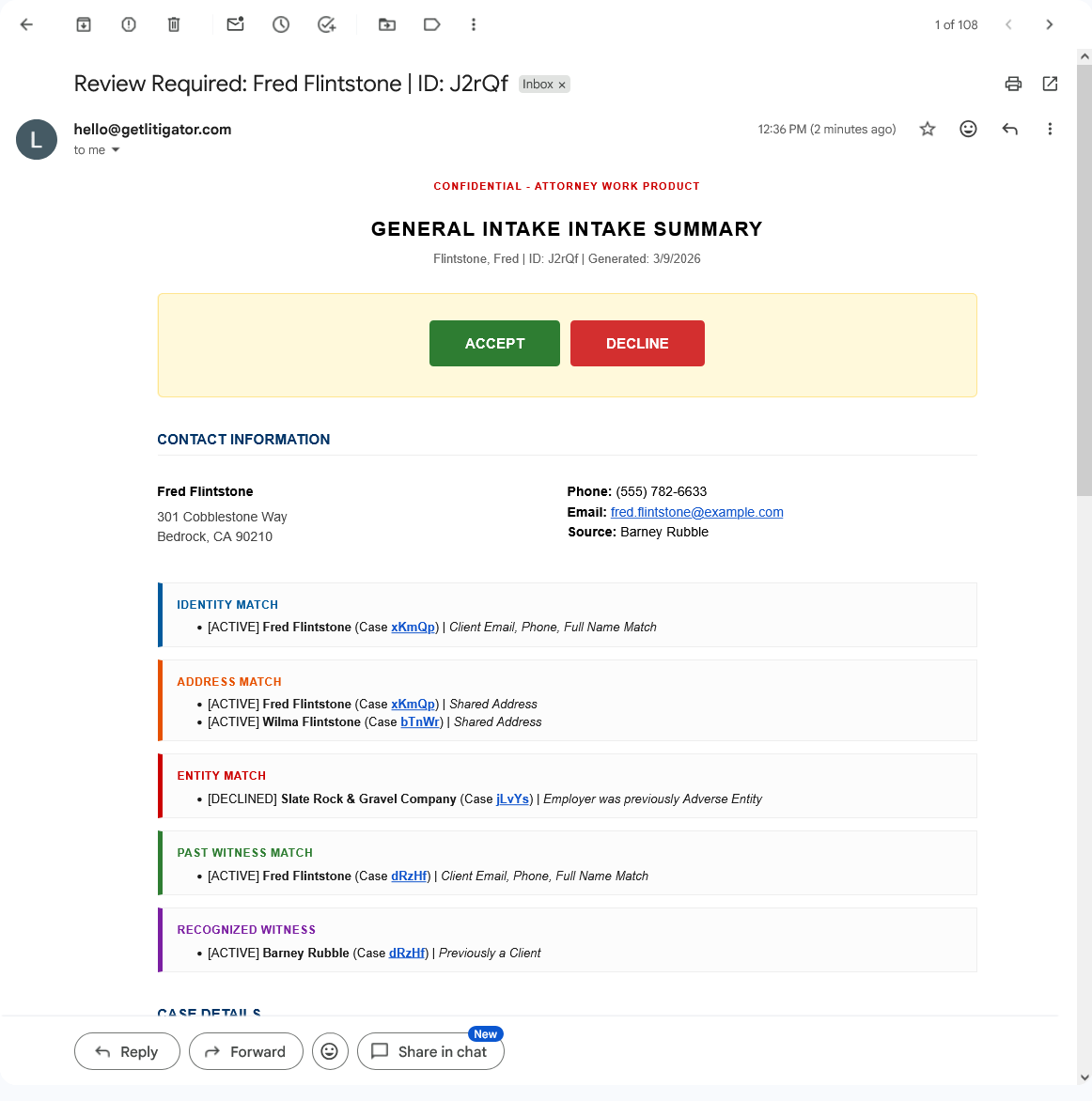
Here is a concrete example of what the same workflow looks like with and without an orchestration layer:
Without orchestration:
A client submits an intake form at 7 PM. The submission lands in a shared inbox. Someone sees it the next morning, forwards it to a paralegal, who copies the information into a spreadsheet and creates a Drive folder manually. The paralegal sends an email to the reviewing attorneys. The attorneys reply at different times over the next two days. Someone aggregates the responses and updates the spreadsheet.
Total time from submission to structured case file: 1–3 days, depending on staff availability. Failure points: the shared inbox, the copy-paste step, the manual folder creation, the email thread aggregation.
With orchestration:
The same form submission arrives at 7 PM. The orchestration layer writes the data to the Sheets intake tab, creates the Drive folder with the correct structure, attaches the PDF summary, and sends a formatted notification email to each reviewing attorney — all within 10 minutes. Attorneys reply directly from email or through a dashboard. Responses are logged automatically. The case file is complete whether or not anyone is in the office.
Same components. Same Google Workspace subscription. Different outcome.
LitiGator as an Example of This Approach
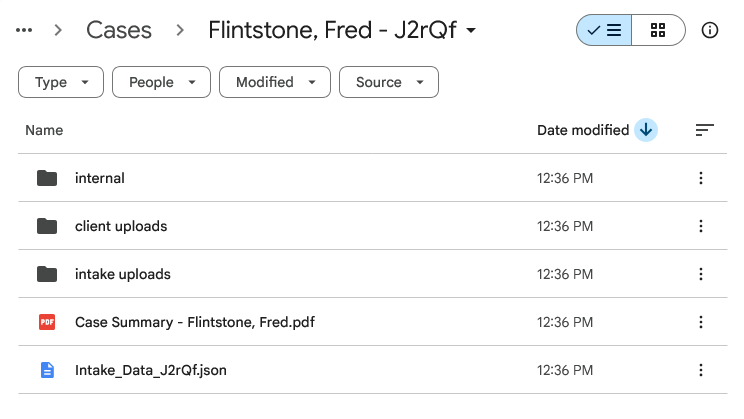
LitiGator is built entirely on this model. It is not a separate platform — it is Google Apps Script code that runs inside your firm’s existing Google Workspace account, using your Sheets, your Drive, your Gmail, and your Google Contacts as the data layer.
There is no new login to manage and no vendor server that holds your client data. The intake pipeline runs within your existing infrastructure. Your data never leaves your Google account.
This is not the only way to build an intake automation system. But it is the approach that most directly addresses what small law firms actually want: the benefits of automation without the overhead of a separate platform.
If you want to understand what the security posture that comes with this architecture looks like in detail, the LitiGator security overview covers the specifics. Or if you would rather see the workflow in action: book a demo.