
Case Folders in Google Drive — Created Automatically
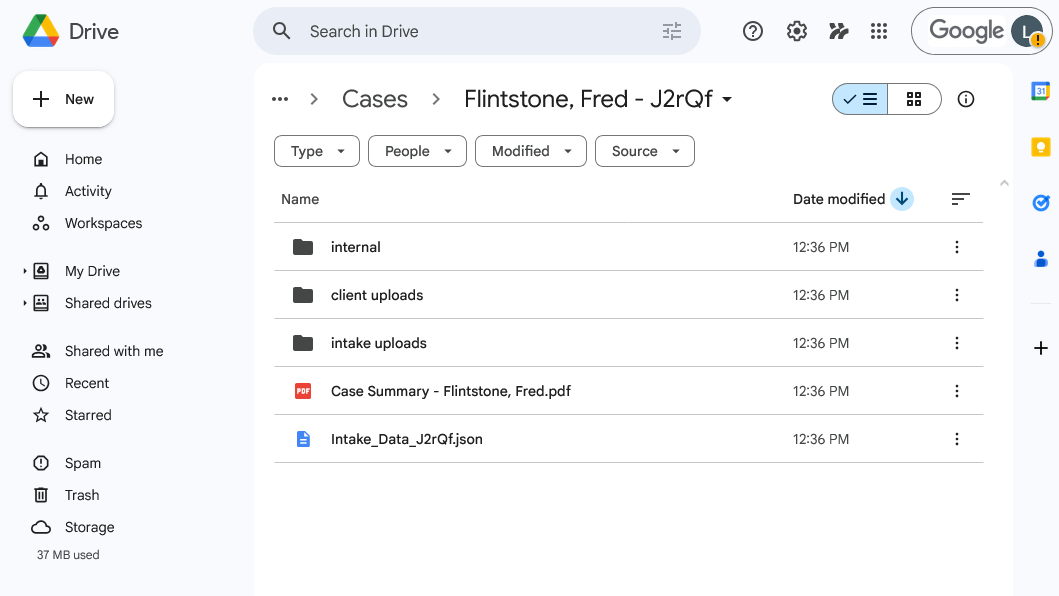
Every intake generates a Google Drive folder with a PDF case summary, uploaded evidence files, a client upload subfolder with instructions, and an internal subfolder for work product. Permissions are set automatically — your review team gets editor access, clients get access to their upload folder only, and internal folders stay private.
No manual folder creation. No file organization. No permission mistakes. The same structure, every case, every time.
Why It Matters
- No manual folder creation or file organization
- Consistent structure across every case
- Clients can upload additional documents through a shared folder
- Internal notes stay separate from client-visible materials
The Case Folder
Each case gets a structured Google Drive folder created automatically:
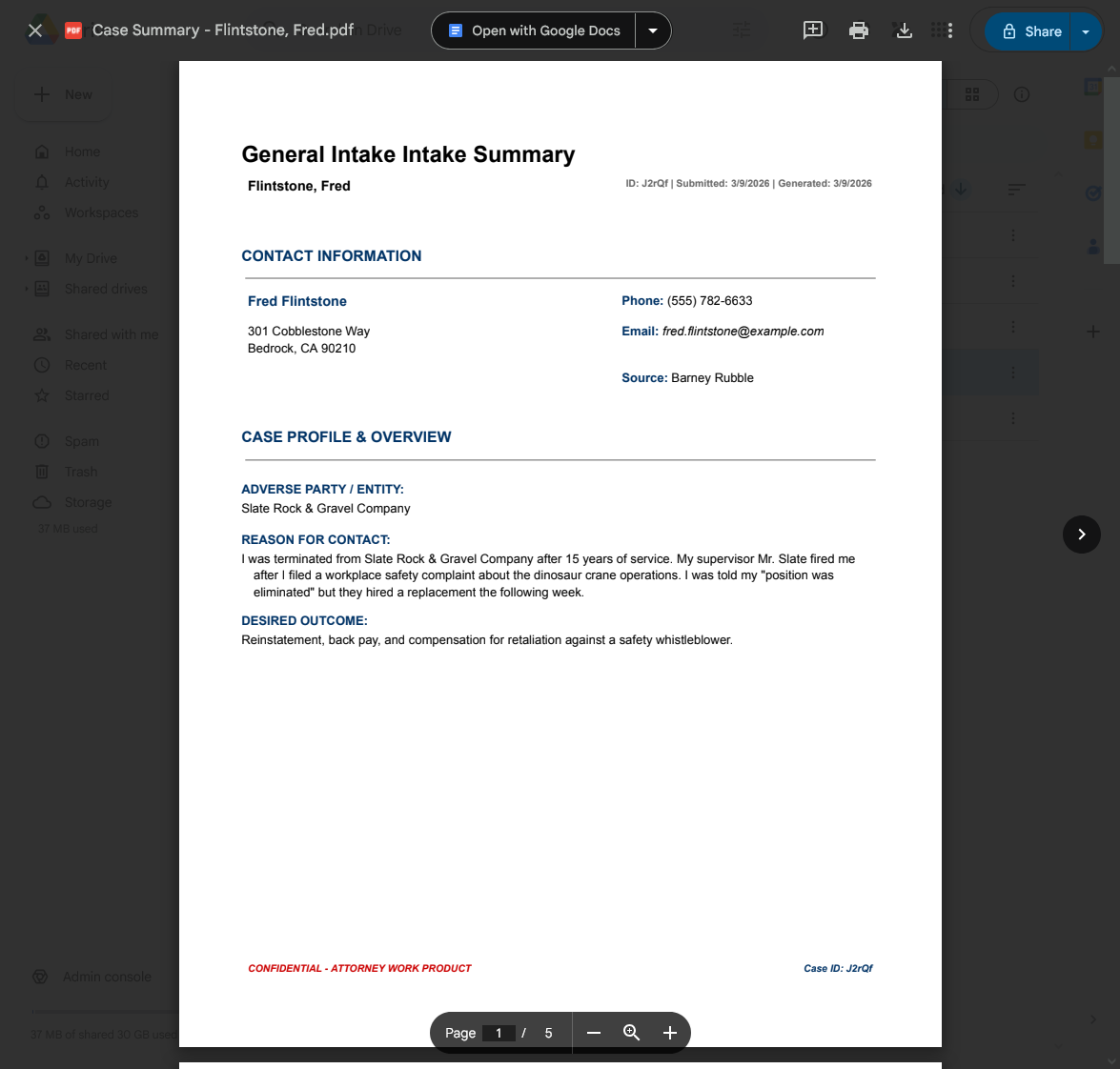
PDF Case Summary
A formatted document is auto-generated with all client details, case summary, timeline, and evidence references.
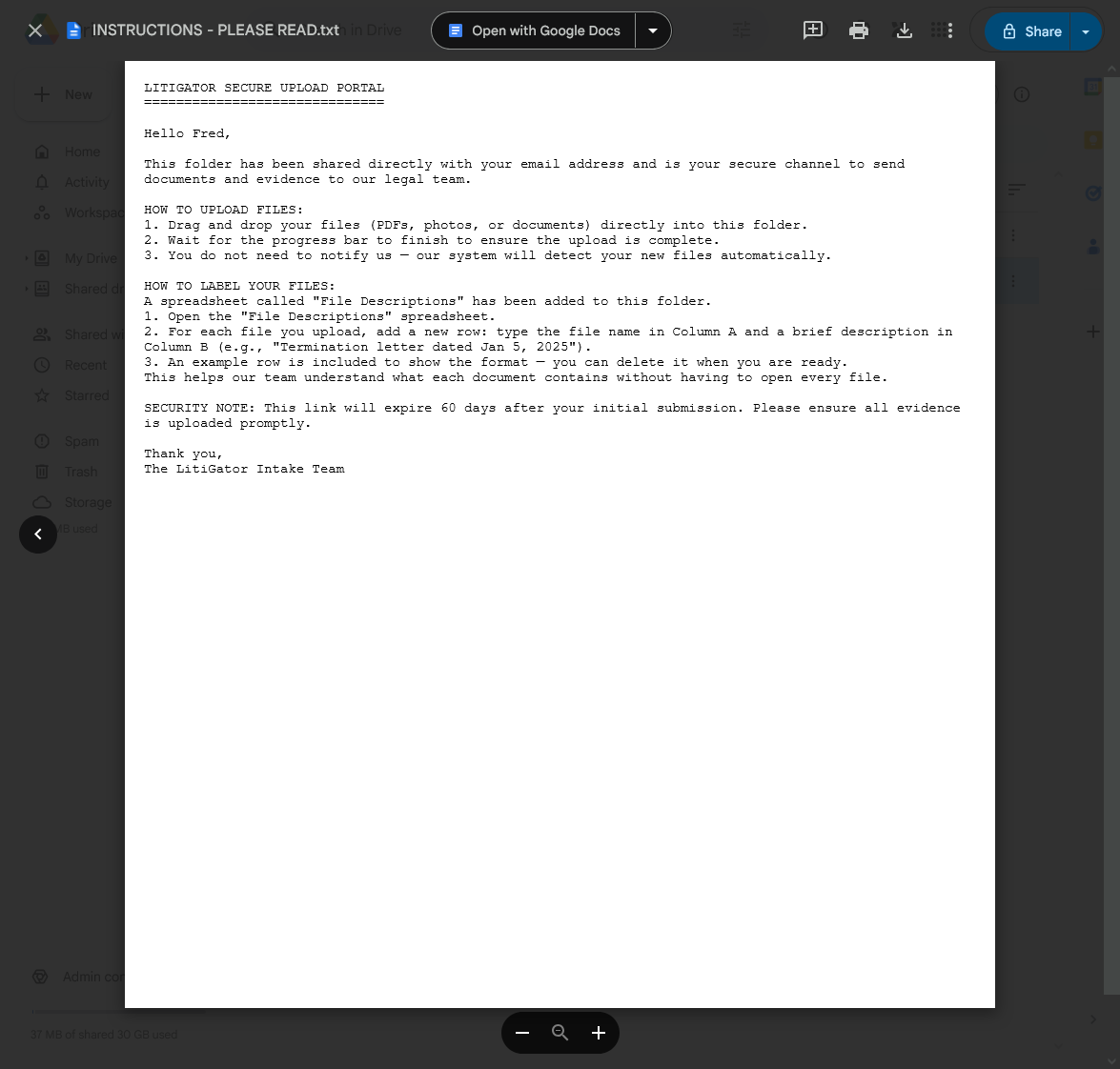
Client Upload Instructions
Clients receive a shared folder with clear instructions for uploading additional documents.
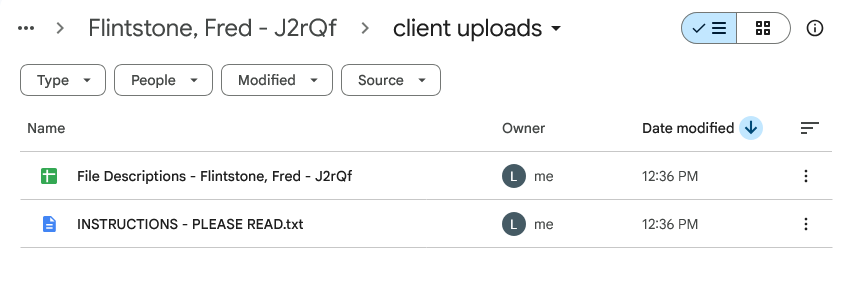
Client Uploads Folder
A dedicated subfolder where clients can add documents. Access is upload-only and expires after 60 days.
Permissions & Security
- Review team — editor access to the entire case folder
- Client — direct access to the Client Uploads subfolder (auto-revoked after 14 days)
- Internal folder — team only, never shared with clients
- Silent sharing — no premature “you’ve been shared on” emails from Google
Key Details
- Automatic expiration — client upload access is automatically revoked after 14 days (configurable)
- Weekly cleanup — a scheduled task audits and removes expired sharing permissions
- Drive link in every email — notification emails include a direct link to the case folder
- Your Google Drive — files stay in your firm’s Drive, under your control